
How to Claim Your Business in ChatGPT: A Guide for US Business Owners
OpenAI launched Businesses in ChatGPT in beta on November 10, 2026. If you own a US business or have permission to manage one, you can check whether it’s eligible to claim in ChatGPT Business Hub. Once verified, you can update details like your website, hours, and services, and see how people engage with your business in ChatGPT. OpenAI’s launch announcement
We followed the setup for Promptora, a web design studio based in Pakistan that works with US clients. Business Hub initially showed a waitlist. We later reached the website setup screens and submitted verification documents. Our application showed Application in review at the end of the walkthrough.
Start by searching for your business
Sign in to ChatGPT Business Hub and search by business name. If you see a result, check the website and address before selecting it.
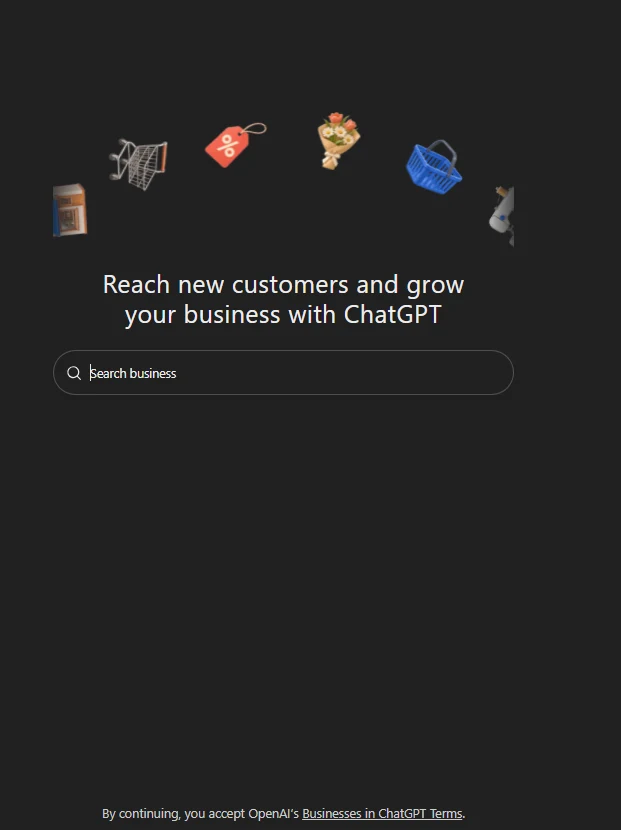
How to claim an existing ChatGPT business listing
- Select the matching listing and open the claim screen. If you see Get started, select it and confirm the account that will manage the profile.
- Follow the verification options shown. Depending on the business, these may include business phone, email, website domain, or Shopify.
- Watch for OpenAI’s decision or request for more information. Follow any remaining identity verification instructions in Business Hub.
For screenshots of the existing-listing path, see Birdeye’s walkthrough. For eligibility and verification requirements, see OpenAI’s setup guide.
Business not showing in ChatGPT Business Hub?
Try the name customers know you by and check any results against your website. Local stores and restaurants can currently claim an existing US listing. Eligible online businesses may see an option to add their business. If you see Join waitlist, Business Hub says it will email you when setup can continue.
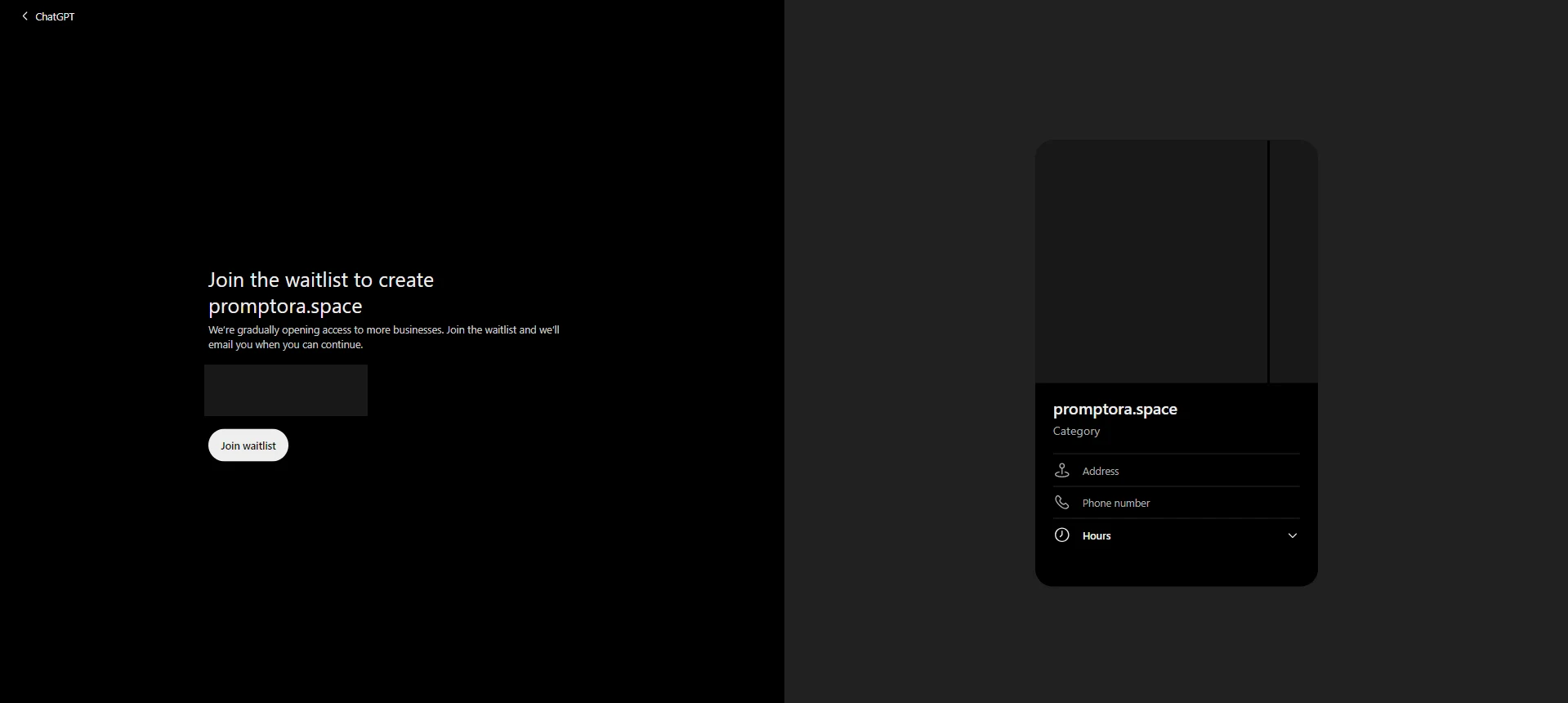
How we added Promptora through its website
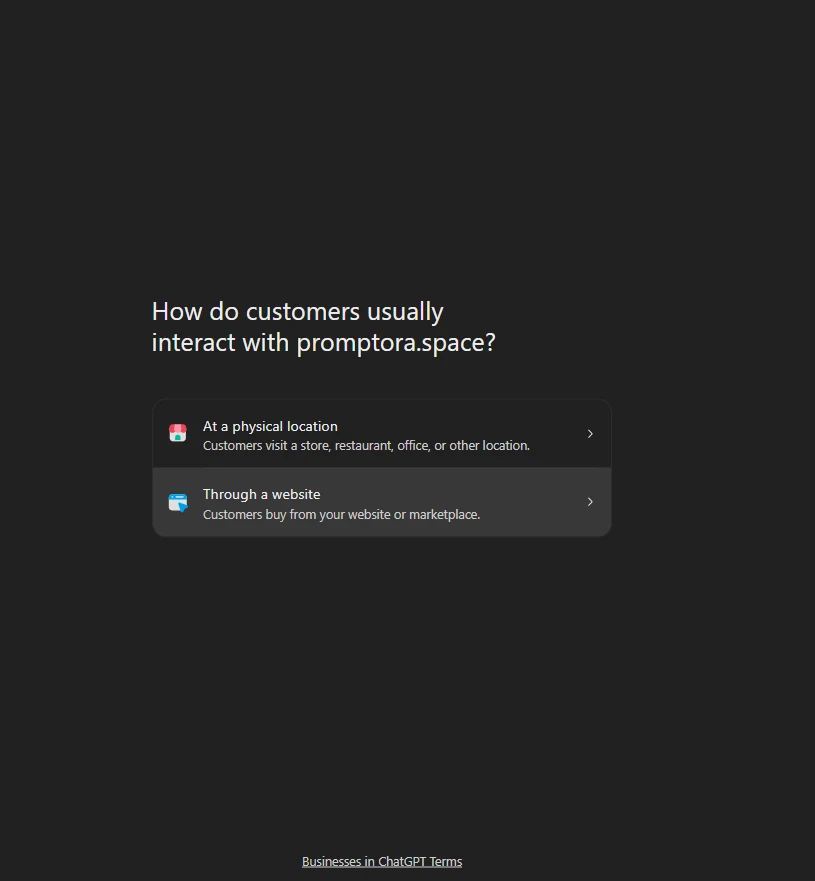
1. Choose how customers interact with you
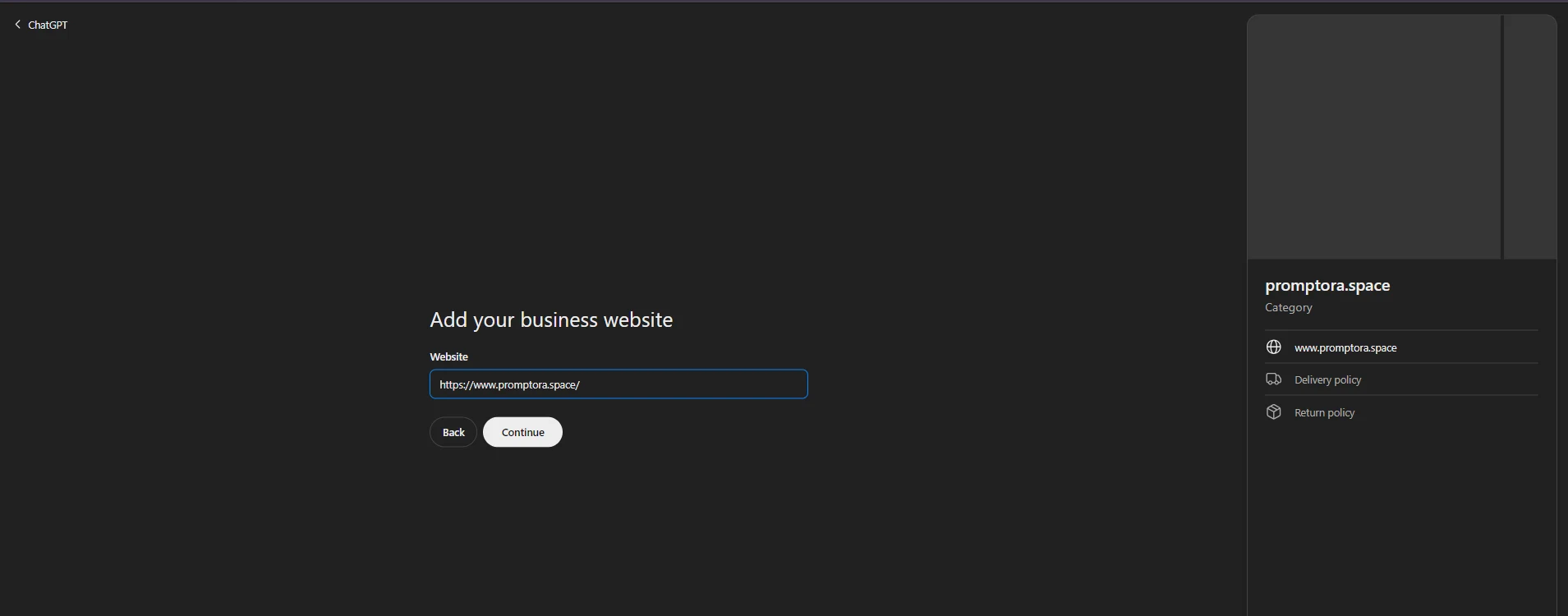
Choose At a physical location if customers visit a store, office, or other location. Choose Through a website if customers interact with your business online. We chose the website option and entered Promptora’s full website URL.
2. Verify control of your website domain
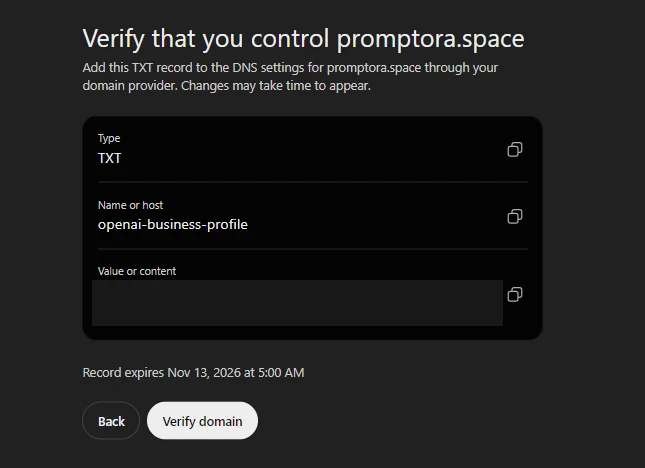
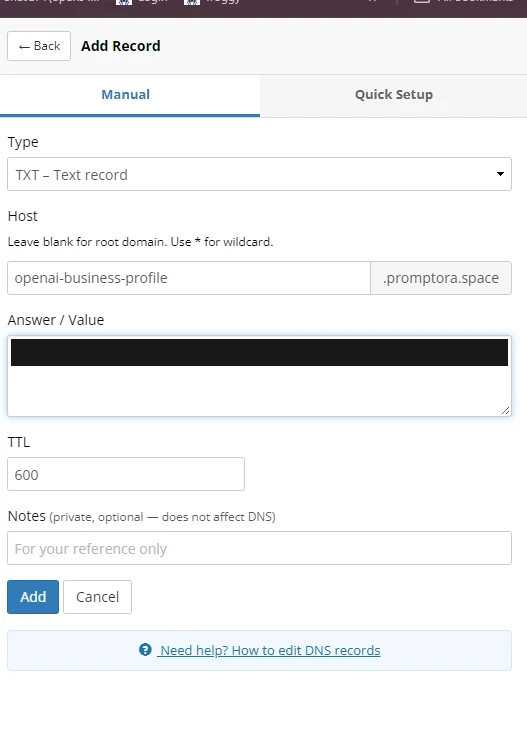
Copy the TXT record name and value from Business Hub into the DNS provider that manages your domain. Promptora’s site is hosted on Vercel, and its DNS is managed in Porkbun. After adding the record in Porkbun, return to Business Hub and select Verify domain. If the record isn’t found immediately, give DNS time to update. Use a fresh value if the challenge expires.
3. Add your category and contact details
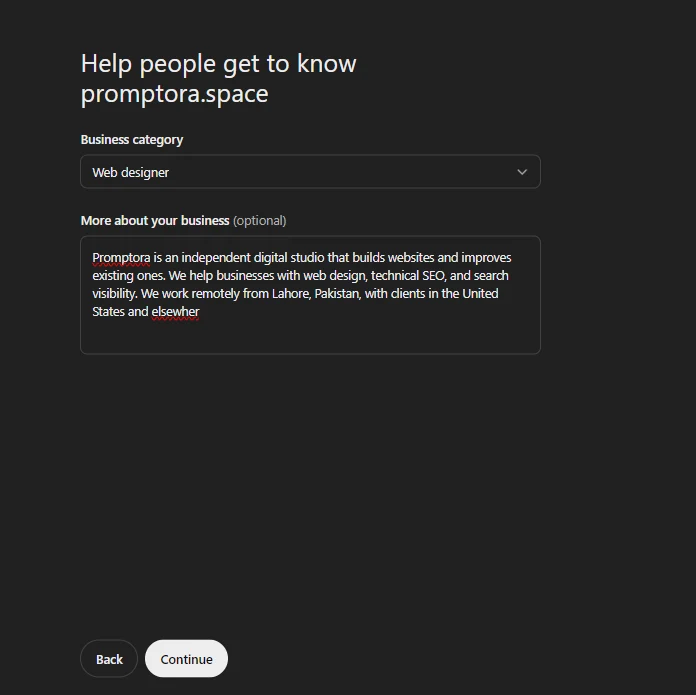
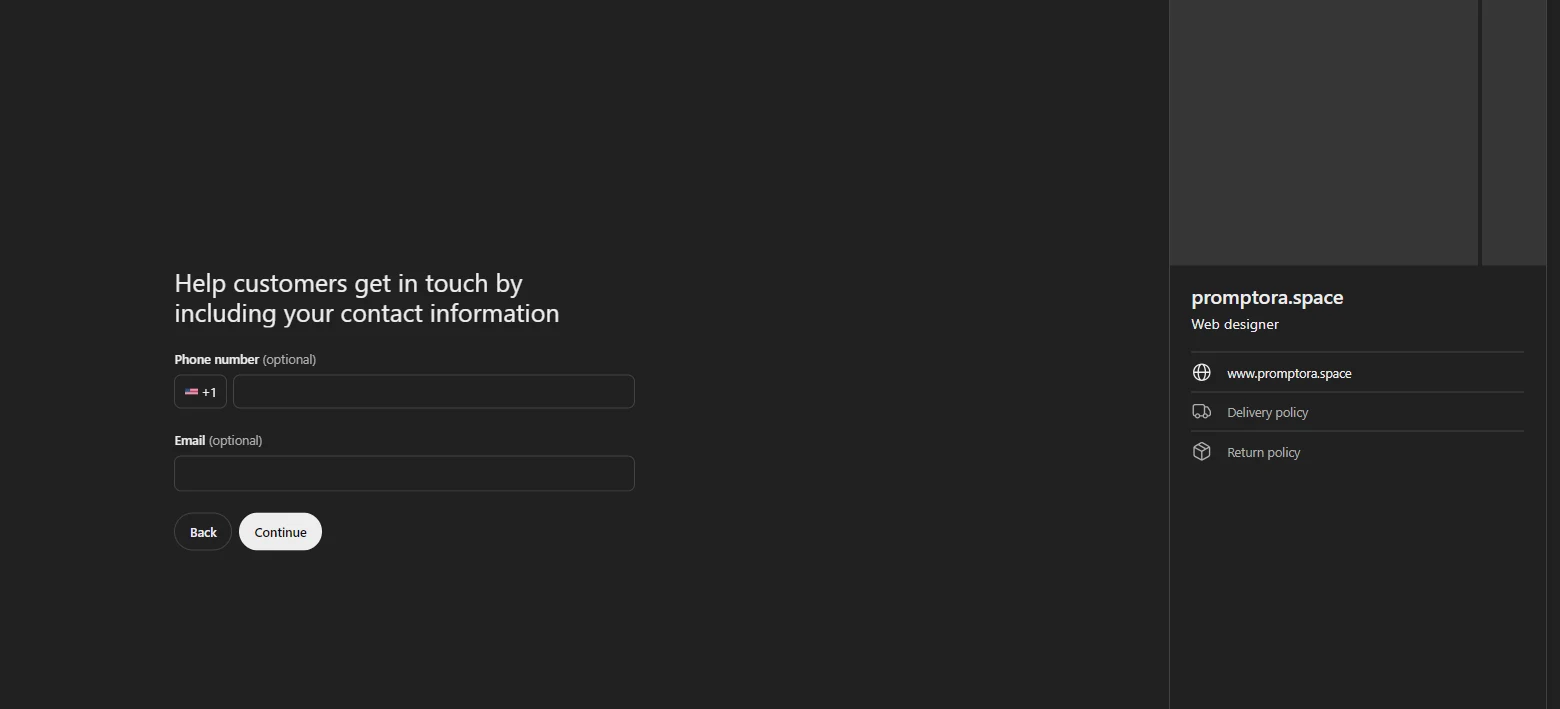
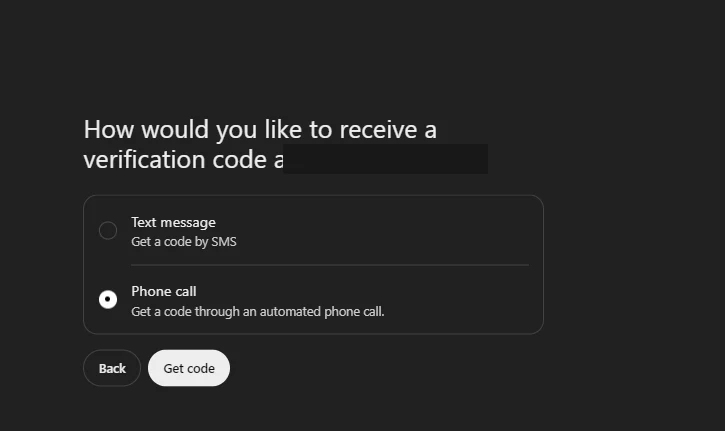
Pick the category that best describes your main service. We selected Web designer and added a short description of what Promptora does and where it works. The phone and email fields were optional. If Business Hub asks to verify your number, choose text message or automated call and enter the code in Business Hub.
4. Select delivery and return options, then submit
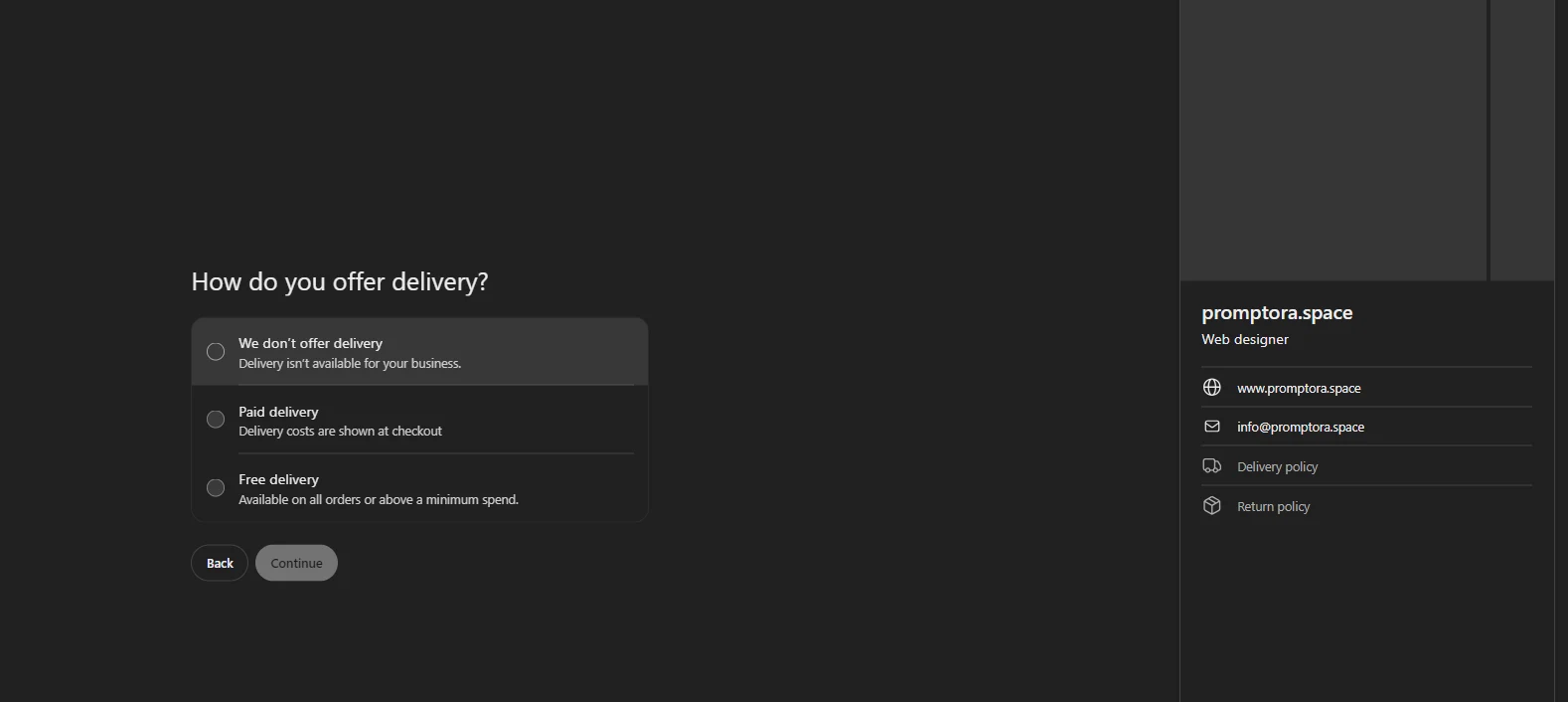
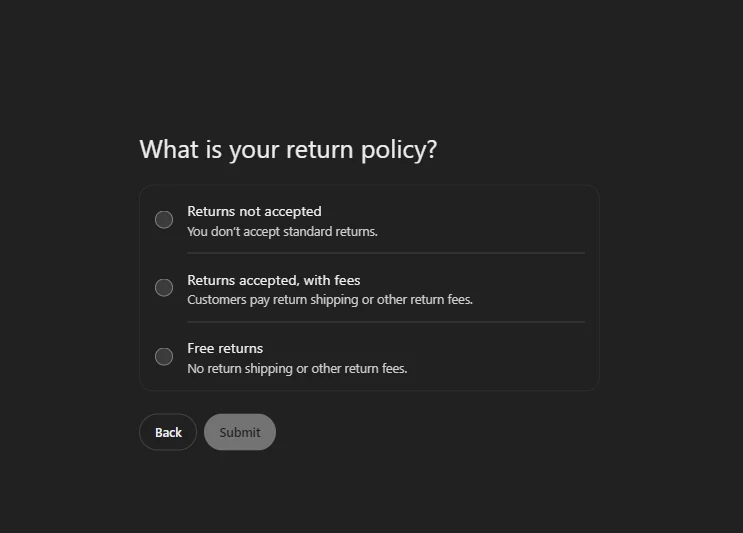
The website setup offered no delivery, paid delivery, and free delivery. It then asked whether standard returns were unavailable, accepted with fees, or free. Choose the options that reflect your business. For a digital studio like Promptora, we chose no delivery and no standard product returns.
5. Complete identity verification and check your status
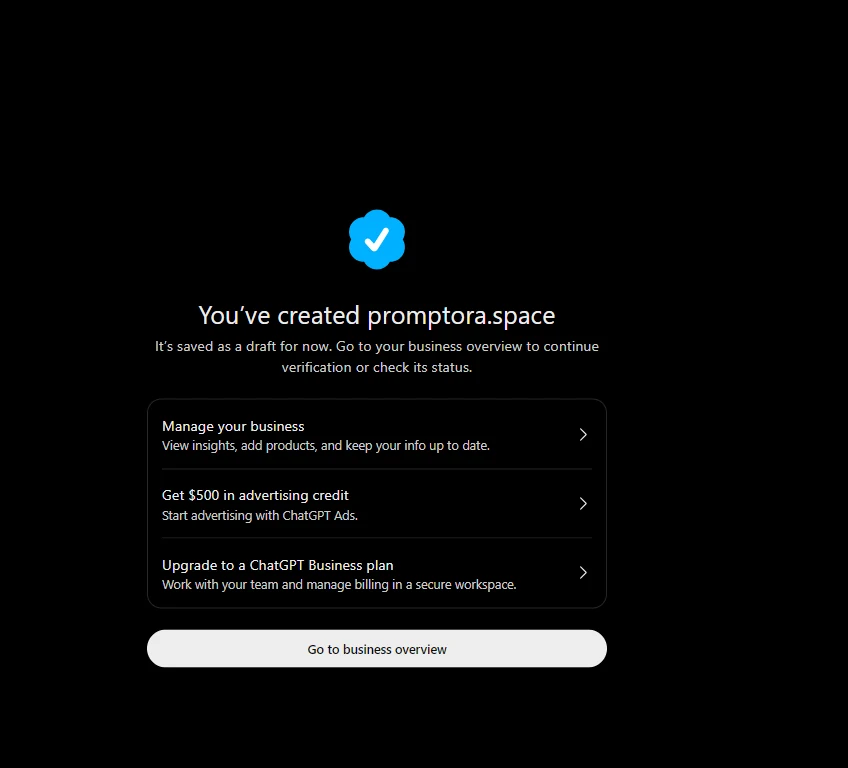
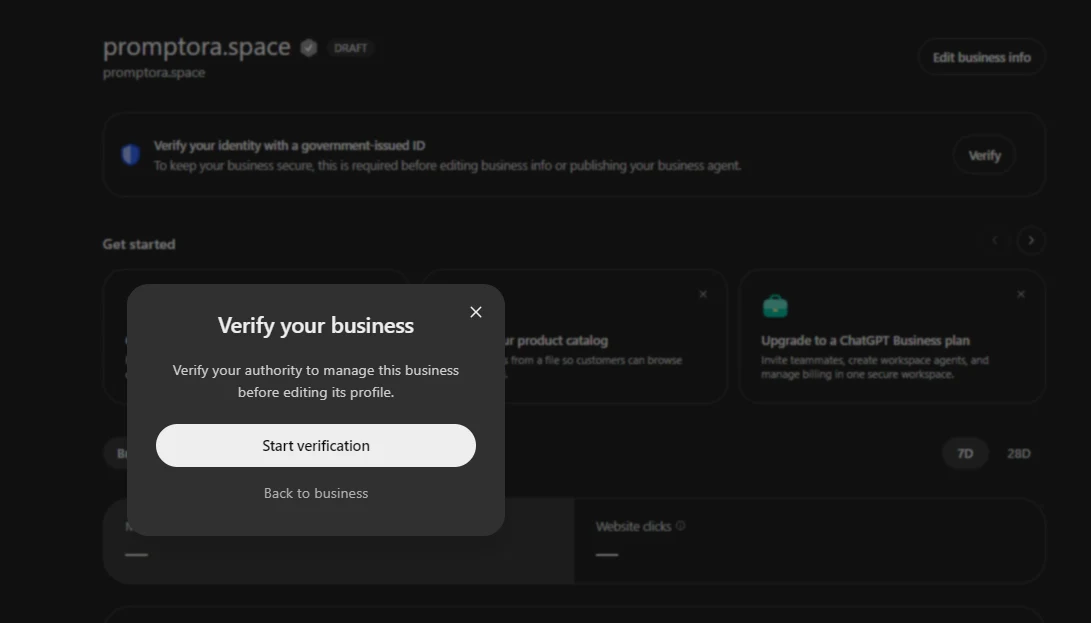
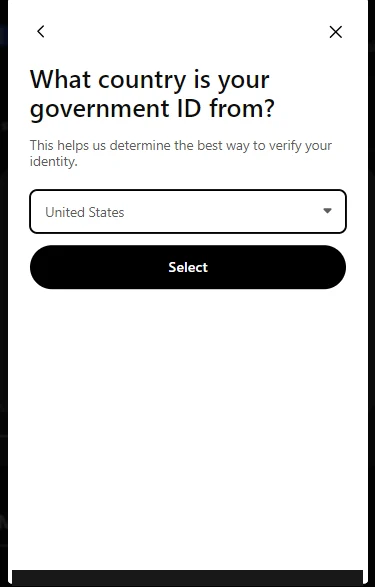
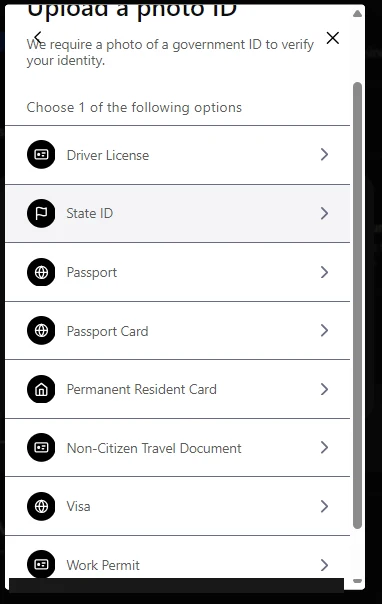
Open your business overview. If your profile shows Draft and asks you to verify your identity, choose Verify and then Start verification. Follow Persona’s instructions, choose the country that issued your ID, and upload one of the document types offered for that country.
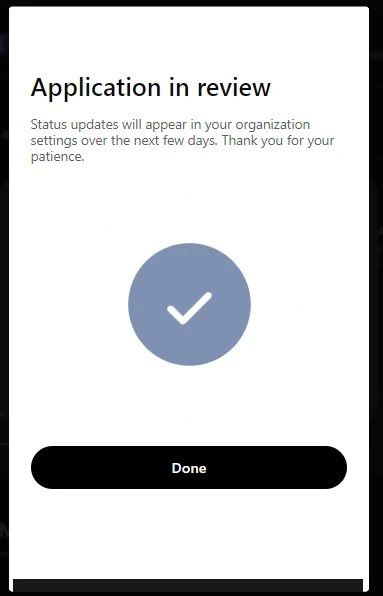
After submitting our documents, Persona showed Application in review and said status updates would appear in organization settings over the next few days. At the time of this walkthrough, approval was pending.
What are the benefits of claiming your business in ChatGPT?
Keep the details customers rely on current. If someone is checking whether you offer a service or where to contact you, an outdated phone number or website link can send them in the wrong direction. After verification, use Business Hub to review your details and submit corrections. Eligible merchants can also provide product feeds with current prices and availability. OpenAI’s Business Hub announcement
See how people discover you. Business Hub provides aggregate insights such as mentions, website clicks, and common topics in conversations where your site is cited. Those topics can suggest useful improvements. For example, if people are trying to find out whether your repair company offers same-day service, check that your site answers the question clearly and explains any limits. OpenAI’s Business Hub announcement
Claiming a listing by itself does not change how visible it is in ChatGPT. The immediate benefit is being able to manage your business information and see how people engage with it. Treat those insights as a baseline before judging whether this channel is sending traffic. OpenAI’s setup guidance
What’s a ChatGPT Business Agent?
A Business Agent is an optional feature for eligible US e-commerce and online service businesses with a website. It can answer customers’ questions using information the business provides. Claiming a profile and publishing a Business Agent are separate steps. OpenAI’s Business Agent eligibility and setup
Do I need ChatGPT Enterprise or an ads account?
OpenAI says eligible owners and authorized representatives can claim their business without an ads account or a ChatGPT Enterprise agreement. OpenAI’s eligibility guidance
Before you claim, check your website
Open your own site on your phone and look at it as a new customer. Can you tell what the business does, which areas it serves, and how to get in touch? Make sure the phone number works, your services and hours are current, and the page you link to gives visitors an obvious next step.
If you’d like another pair of eyes, get a free website audit. Send us your website and we’ll flag up to three issues that may be hurting search visibility or inquiries, then tell you what we’d fix first.